M08-Unit 3 Monitor a load balancer resource using Azure Monitor
In this exercise, you will create an internal load balancer for the fictional Contoso Ltd organization. Then you will create a Log Analytics workspace, and use Azure Monitor Insights to view information about your internal load balancer. You will view the Functional Dependency View, then view detailed metrics for the load balancer resource, and view resource health information for the load balancer. Finally, you will configure the load balancer’s diagnostic settings to send metrics to the Log Analytics workspace you created.
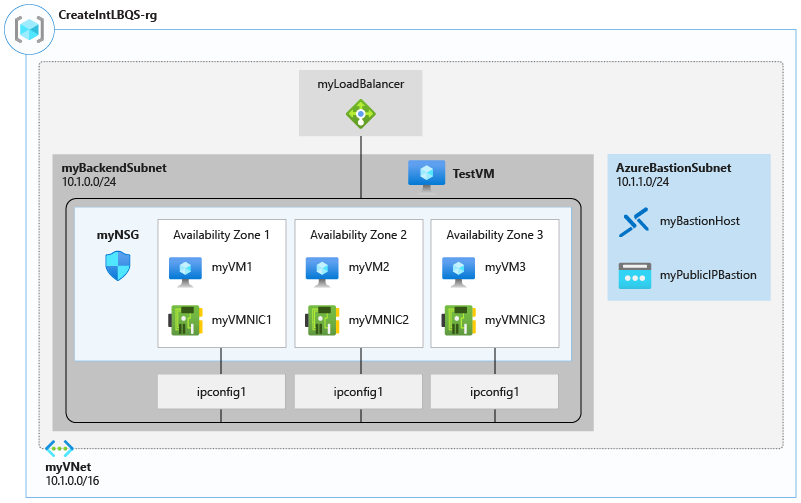
The diagram below illustrates the environment you will be deploying in this exercise.
In this exercise, you will:
- Task 1: Create the virtual network
- Task 2: Create the load balancer
- Task 3: Create a backend pool
- Task 4: Create a health probe
- Task 5: Create a load balancer rule
- Task 6: Create backend servers
- Task 7: Add VMs to the backend pool
- Task 8: Install IIS on the VMs
- Task 9: Test the load balancer
- Task 10: Create a Log Analytics Workspace
- Task 11: Use Functional Dependency View
- Task 12: View detailed metrics
- Task 13: View resource health
- Task 14: Configure diagnostic settings
- Task 15: Clean up resources
Task 1: Create the virtual network
In this section, you will create a virtual network and a subnet.
-
Log in to the Azure portal.
-
On the Azure portal home page, search Virtual Network and select virtual network under services.
-
Click + Create.
-
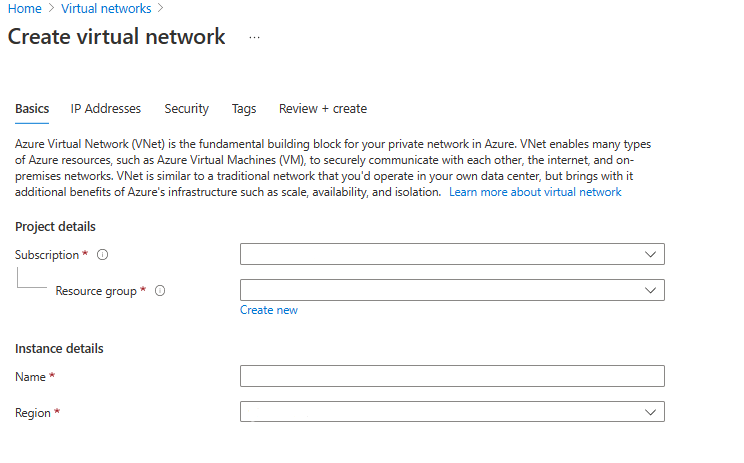
On the Basics tab, use the information in the table below to create the virtual network.
Setting Value Subscription Select your subscription Resource group Select Create new
Name: IntLB-RGName IntLB-VNet Region (US) West US -
Click Next : IP Addresses.
-
On the IP Addresses tab, in the IPv4 address space box, type 10.1.0.0/16.
-
Above Subnet name, select + Add subnet.
-
In the Add subnet pane, provide a subnet name of myBackendSubnet, and a subnet address range of 10.1.0.0/24.
-
Click Add.
-
Click Next : Security.
-
Under BastionHost select Enable, then enter the information from the table below.
Setting Value Bastion name myBastionHost AzureBastionSubnet address space 10.1.1.0/24 Public IP address Select Create new
Name: myBastionIP -
Click Review + create.
-
Click Create.
Task 2: Create the load balancer
In this section, you will create an internal Standard SKU load balancer. The reason we are creating a Standard SKU load balancer here in the exercise, instead of a Basic SKU load balance, is for later exercises that require a Standard SKU version of the load balancer.
-
On the Azure portal home page, in the search box at the top of the page, type Load Balancer and select load balancers under services.
-
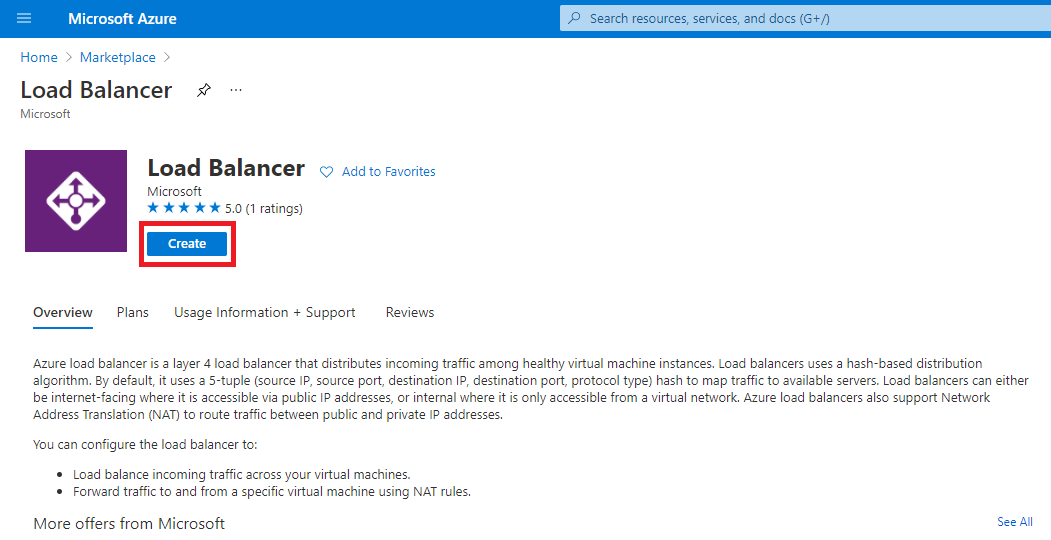
Click Create.
-
On the Basics tab, use the information in the table below to create the load balancer.
Setting Value Basics tab Subscription Select your subscription Resource group IntLB-RG Name myIntLoadBalancer Region (US) West US SKU Standard Type Internal Frontend IP configuration tab + Add a frontend IP configuration Virtual network IntLB-VNet Subnet myBackendSubnet IP address assignment Dynamic -
Click Review + create.
-
Click Create.
Task 3: Create a backend pool
The backend address pool contains the IP addresses of the virtual NICs connected to the load balancer.
-
On the Azure portal home page, click All resources, then click on myIntLoadBalancer from the resources list.
-
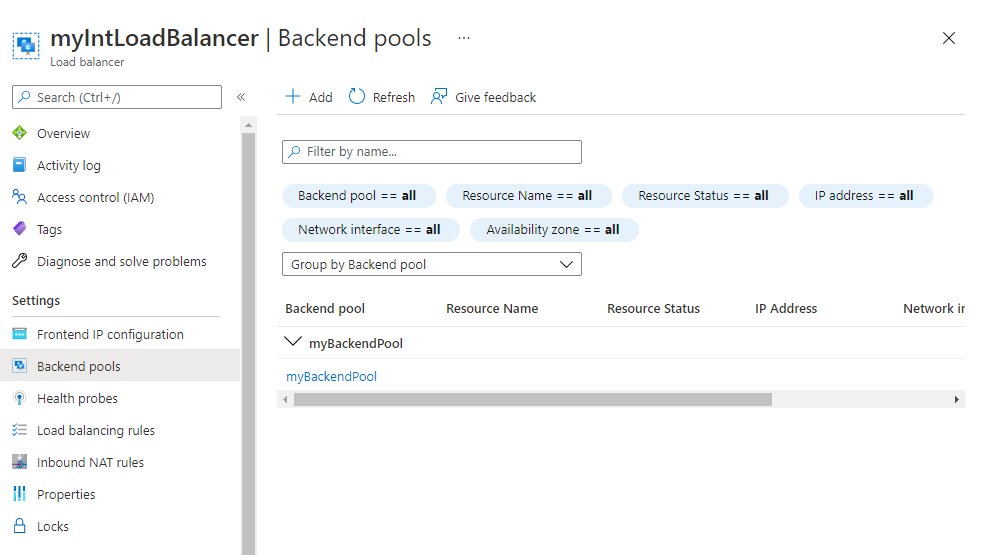
Under Settings, select Backend pools, and then click Add.
-
On the Add backend pool page, enter the information from the table below.
Setting Value Name myBackendPool Virtual network IntLB-VNet Associated to Virtual machines -
Click Add.
Task 4: Create a health probe
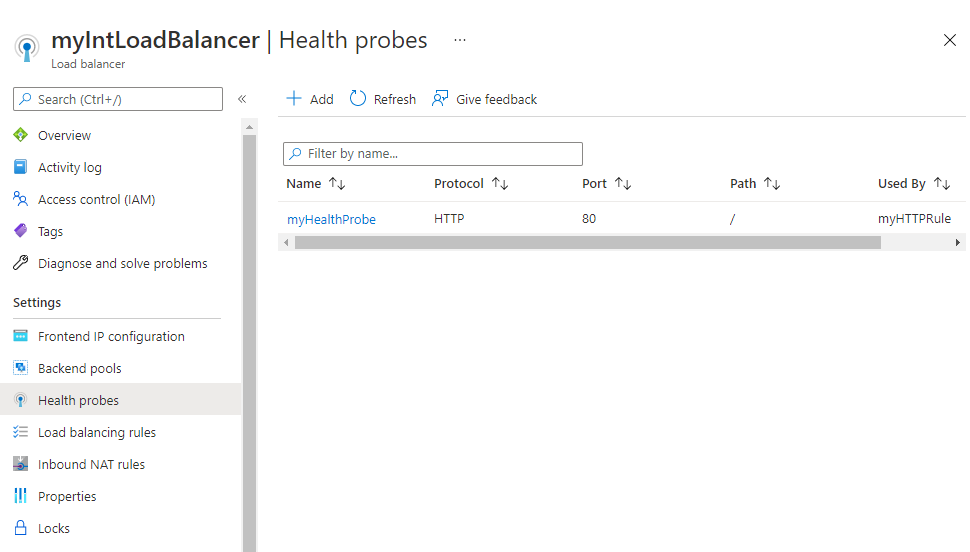
The load balancer monitors the status of your app with a health probe. The health probe adds or removes VMs from the load balancer based on their response to health checks. Here you will create a health probe to monitor the health of the VMs.
-
From the Backend pools page of your load balancer, under Settings, click Health probes, then click Add.
-
On the Add health probe page, enter the information from the table below.
Setting Value Name myHealthProbe Protocol HTTP Port 80 Path / Interval 15 Unhealthy threshold 2 -
Click Add.
Task 5: Create a load balancer rule
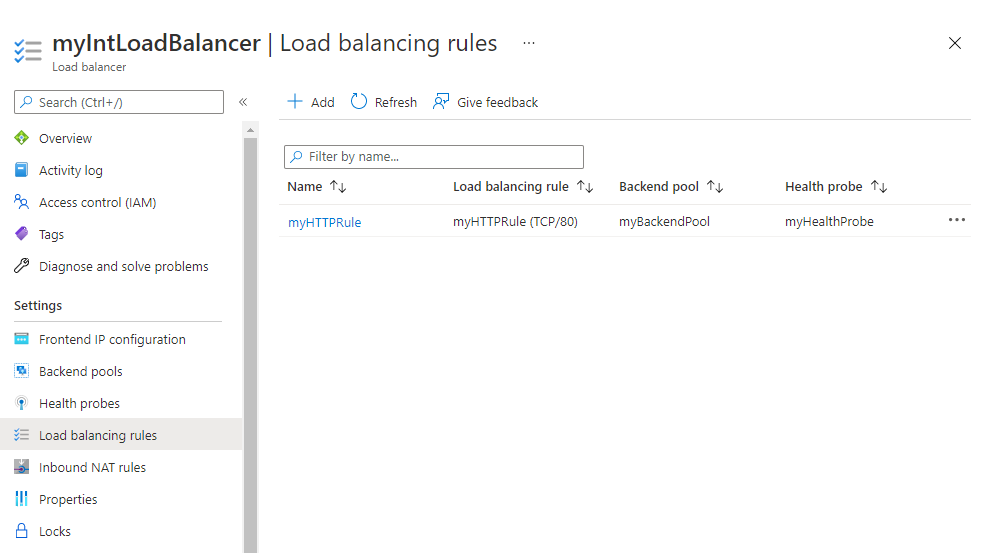
A load balancer rule is used to define how traffic is distributed to the VMs. You define the frontend IP configuration for the incoming traffic and the backend IP pool to receive the traffic. The source and destination port are defined in the rule. Here you will create a load balancer rule.
-
From the Backend pools page of your load balancer, under Settings, click Load balancing rules, then click Add.
-
On the Add load balancing rule page, enter the information from the table below.
Setting Value Name myHTTPRule IP Version IPv4 Frontend IP address LoadBalancerFrontEnd Protocol TCP Port 80 Backend port 80 Backend pool myBackendPool Health probe myHealthProbe Session persistence None Idle timeout (minutes) 15 Floating IP Disabled -
Click Add.
Task 6: Create backend servers
In this section, you will create three VMs, that will be in the same availability set, for the backend pool of the load balancer, add the VMs to the backend pool, and then install IIS on the three VMs to test the load balancer.
-
In the Azure portal, open the PowerShell session within the Cloud Shell pane.
-
In the toolbar of the Cloud Shell pane, click the Upload/Download files icon, in the drop-down menu, click Upload and upload the following files azuredeploy.json, azuredeploy.parameters.vm1.json, azuredeploy.parameters.vm2.json and azuredeploy.parameters.vm3.json into the Cloud Shell home directory from the source folder F:\Allfiles\Exercises\M08.
-
Deploy the following ARM templates to create the virtual network, subnets, and VMs needed for this exercise:
$RGName = "IntLB-RG"

New-AzResourceGroupDeployment -ResourceGroupName $RGName -TemplateFile azuredeploy.json -TemplateParameterFile azuredeploy.parameters.vm1.json
New-AzResourceGroupDeployment -ResourceGroupName $RGName -TemplateFile azuredeploy.json -TemplateParameterFile azuredeploy.parameters.vm2.json
New-AzResourceGroupDeployment -ResourceGroupName $RGName -TemplateFile azuredeploy.json -TemplateParameterFile azuredeploy.parameters.vm3.json
Note: This will take several minutes to deploy.
Task 7: Add VMs to the backend pool
-
On the Azure portal home page, click All resources, then click on myIntLoadBalancer from the resources list.
-
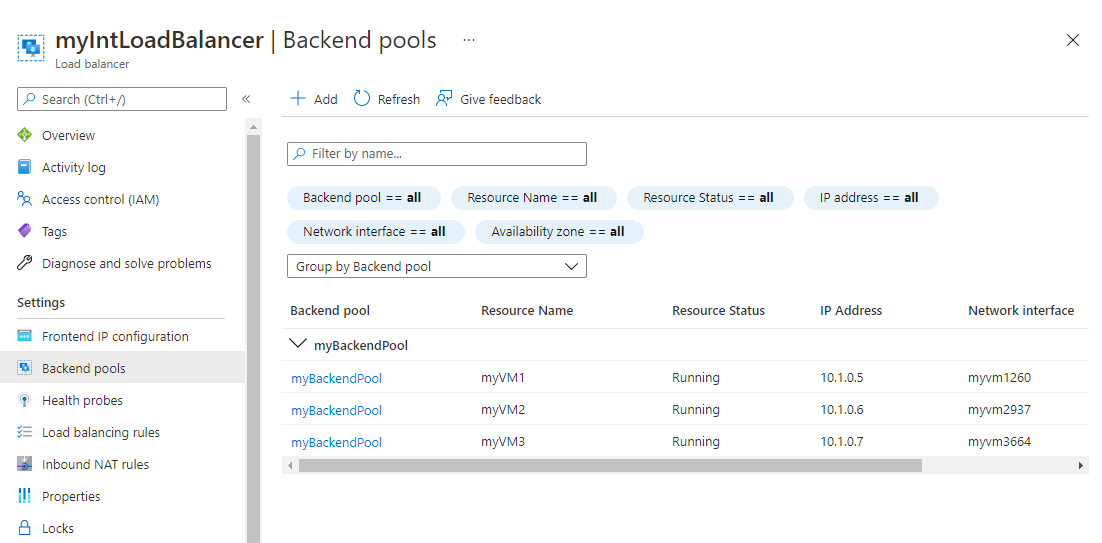
Under Settings, select Backend pools., and then select myBackendPool.
-
In the Associated to box, select Virtual machines.
-
Under Virtual machines, click Add.
-
Select the checkboxes for all 3 VMs (myVM1, myVM2, and myVM3), then click Add.
-
On the myBackendPool page, click Save.
Task 8: Install IIS on the VMs
- On the Azure portal home page, click All resources, then click on myVM1 from the resources list.
- On the Overview page, select Connect, then Bastion.
- Click Use Bastion.
- In the Username box, type TestUser and in the Password box, type TestPa$$w0rd!, then click Connect.
- The myVM1 window will open in another browser tab.
- If a Networks pane appears, click Yes.
- Click the Windows Start icon in the bottom left corner of the window, then click the Windows PowerShell tile.
- To install IIS, run the following command in PowerShell: Install-WindowsFeature -name Web-Server -IncludeManagementTools
- To remove the existing default web home page, run the following command in PowerShell: Remove-Item C:\inetpub\wwwroot\iisstart.htm
- To add a new default web home page and add content to it, run the following command in PowerShell: Add-Content -Path “C:\inetpub\wwwroot\iisstart.htm” -Value $(“Hello World from “ + $env:computername)
- Close the Bastion session to myVM1 by closing the browser tab.
- Repeat steps 1-11 above twice more to install IIS and the updated default home page on the myVM2 and myVM3 virtual machines.
Task 9: Test the load balancer
In this section, you will create a test VM, and then test the load balancer.
Create test VM
-
On the Azure home page, using the global search type Virtual Machines and select virtual machines under services.
-
Select + Create; + Virtual machine, on the Basics tab, use the information in the table below to create the first VM.
Setting Value Subscription Select your subscription Resource group IntLB-RG Virtual machine name myTestVM Region (US) West US Availability options No infrastructure redundancy required Image Windows Server 2019 Datacenter - Gen 1 Size Standard_DS2_v3 - 2 vcpu, 8 GiB memory Username TestUser Password TestPa$$w0rd! Confirm password TestPa$$w0rd! -
Click Next : Disks, then click Next : Networking.
-
On the Networking tab, use the information in the table below to configure networking settings.
Setting Value Virtual network IntLB-VNet Subnet myBackendSubnet Public IP Change to None NIC network security group Advanced Configure network security group Select the existing myNSG Place this virtual machine behind an existing load balancing solution? Off (unchecked) -
Click Review + create.
-
Click Create.
-
Wait for this last VM to be deployed before moving forward with the next task.
Connect to the test VM to test the load balancer
-
On the Azure portal home page, click All resources, then click on myIntLoadBalancer from the resources list.
-
On the Overview page, make a note of the Private IP address, or copy it to the clipboard. Note: you may have to select See more to see the Private IP address.
-
Click Home, then on the Azure portal home page, click All resources, then click on the myTestVM virtual machine that you just created.
-
On the Overview page, select Connect, then Bastion.
-
Click Use Bastion.
-
In the Username box, type TestUser and in the Password box, type TestPa$$w0rd!, then click Connect.
-
The myTestVM window will open in another browser tab.
-
If a Networks pane appears, click Yes.
-
Click the Internet Explorer icon in the task bar to open the web browser.
-
Click OK on the Set up Internet Explorer 11 dialog box.
-
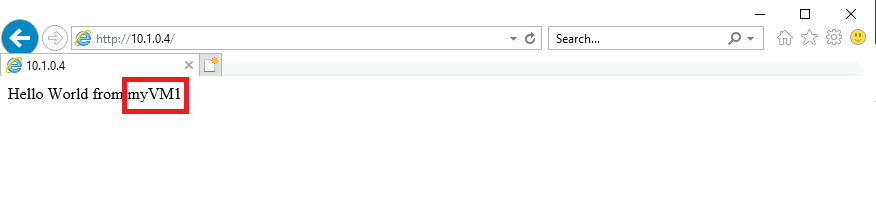
Enter (or paste) the Private IP address (e.g. 10.1.0.4) from the previous step into the address bar of the browser and press Enter.
-
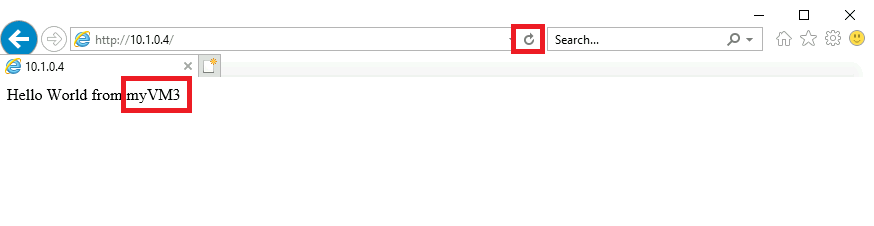
The default web home page of the IIS Web server is displayed in the browser window. One of the three virtual machines in the backend pool will respond.
-
If you click the refresh button in the browser a few times, you will see that the response comes randomly from the different VMs in the backend pool of the internal load balancer.
Task 10: Create a Log Analytics Workspace
-
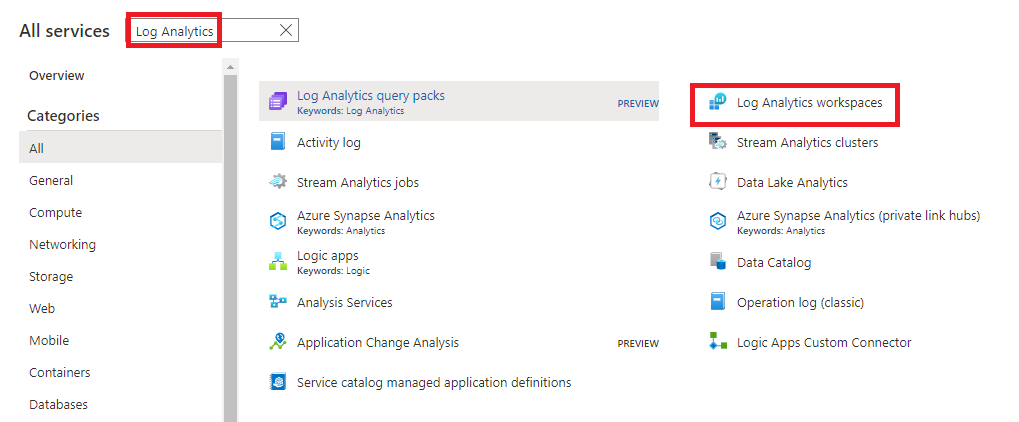
On the Azure portal home page, click All services, then in the search box at the top of the page type Log Analytics, and select Log Analytics workspaces from the filtered list.
-
Click Create.
-
On the Create Log Analytics workspace page, on the Basics tab, use the information in the table below to create the workspace.
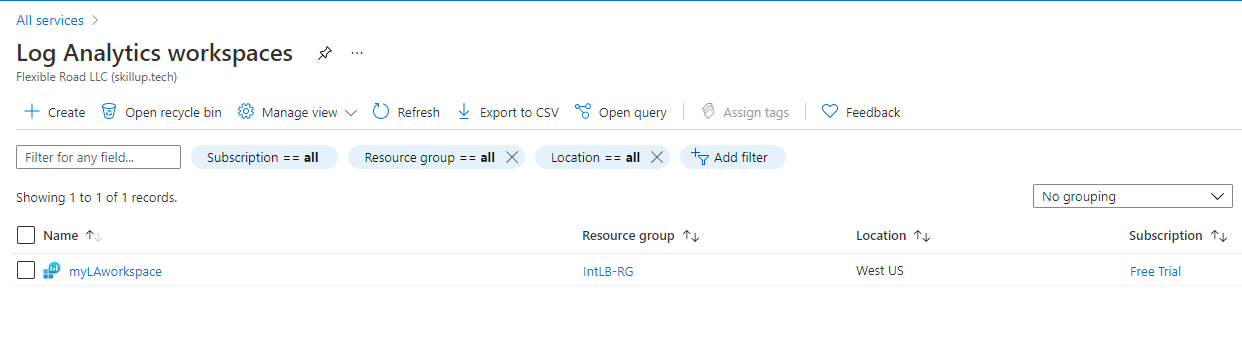
Setting Value Subscription Select your subscription Resource group IntLB-RG Name myLAworkspace Region West US -
Click Review + Create, then click Create.
Task 11: Use Functional Dependency View
-
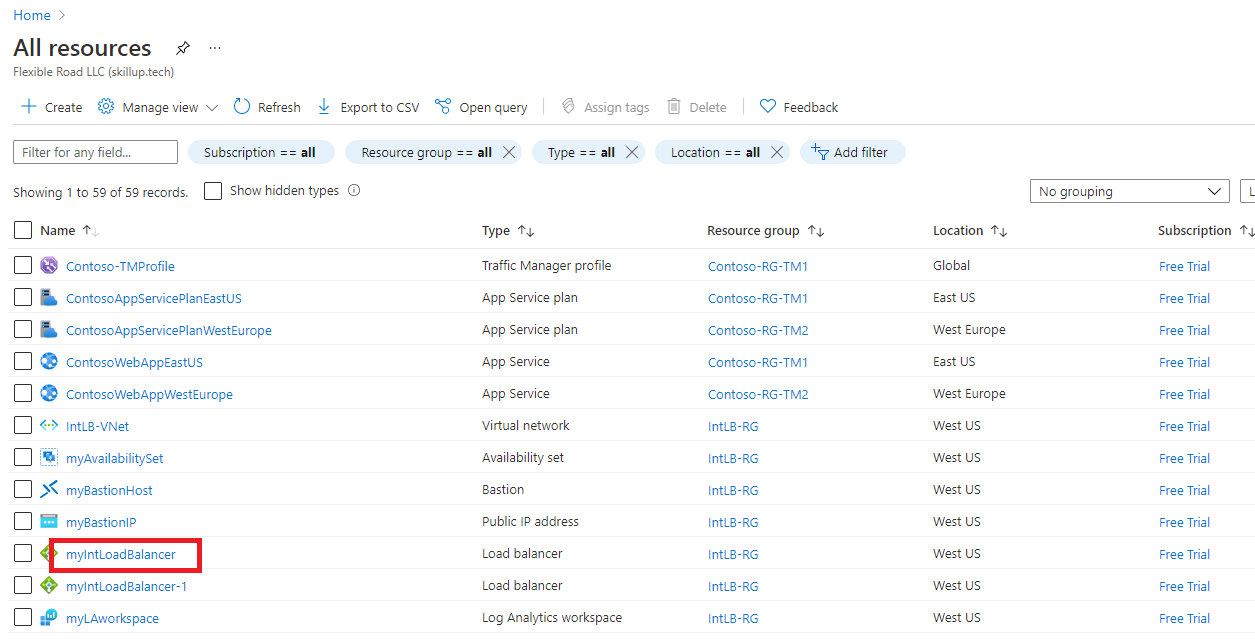
On the Azure portal home page, click All resources, then in the resources list, select myIntLoadBalancer.
-
Under Monitoring, select Insights.
-
In the top right corner of the page, click the X to close the Metrics pane for now. You will open it again shortly.
-
This page view is known as Functional Dependency View, and in this view, you get a useful interactive diagram, which illustrates the topology of the selected network resource - in this case a load balancer. For Standard Load Balancers, your backend pool resources are color-coded with Health Probe status indicating the current availability of your backend pool to serve traffic.
-
Use the Zoom In (+) and Zoom Out (-) buttons in the bottom right corner of the page, to zoom in and out of the topology diagram (alternatively you can use your mouse wheel if you have one). You can also drag the topology diagram around the page to move it.
-
Hover over the LoadBalancerFrontEnd component in the diagram, then hover over the myBackendPool component.
-
Notice that you can use the links in these pop-up windows to view information about these load balancer components and open their respective Azure portal blades.
-
To download a .SVG file copy of the topology diagram, click Download topology, and save the file in your Downloads folder.
-
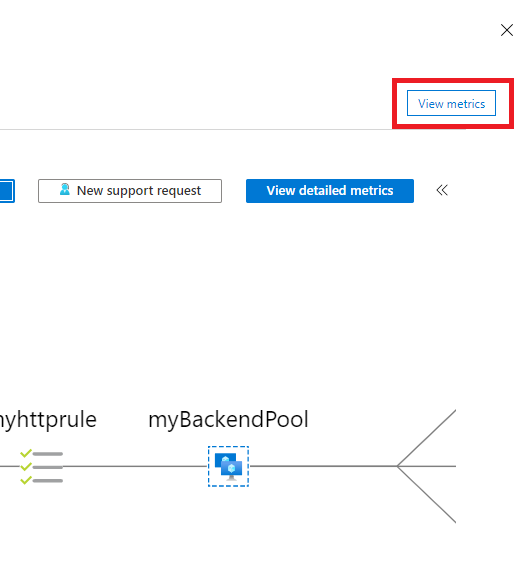
In the top right corner, click View metrics to reopen the metrics pane on the right-hand side of the screen.
-
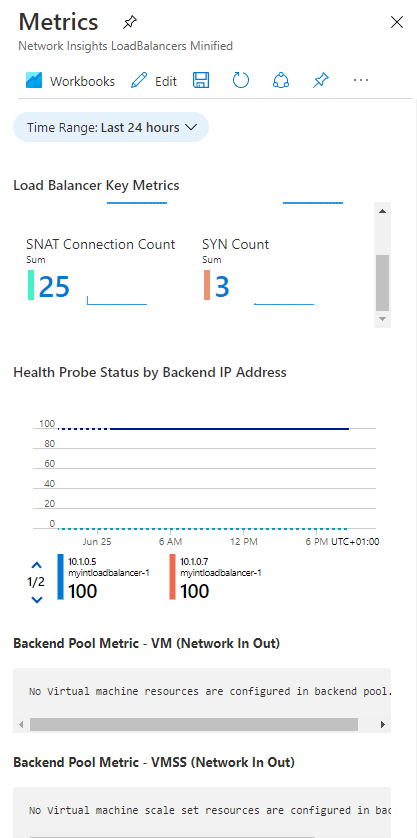
The Metrics pane provides a quick view of some key metrics for this load balancer resource, in the form of bar and line charts.
Task 12: View detailed metrics
-
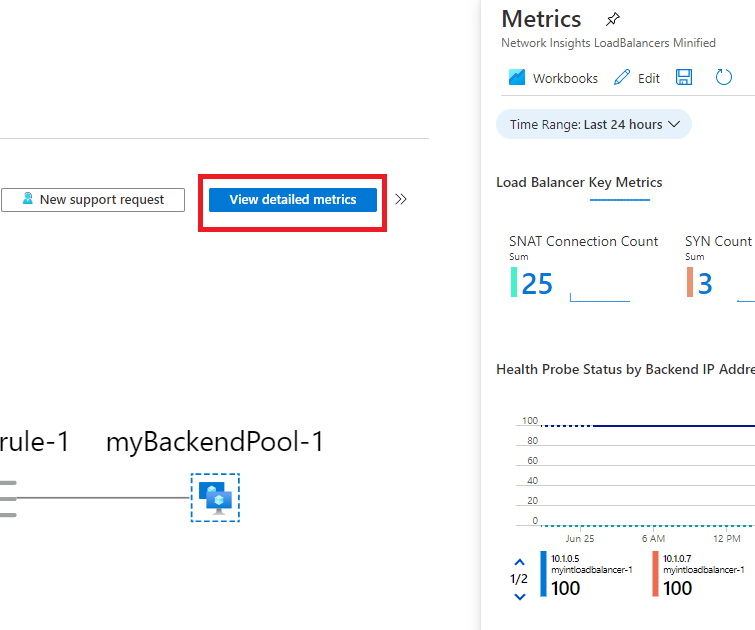
To view more comprehensive metrics for this network resource, click View detailed metrics.
-
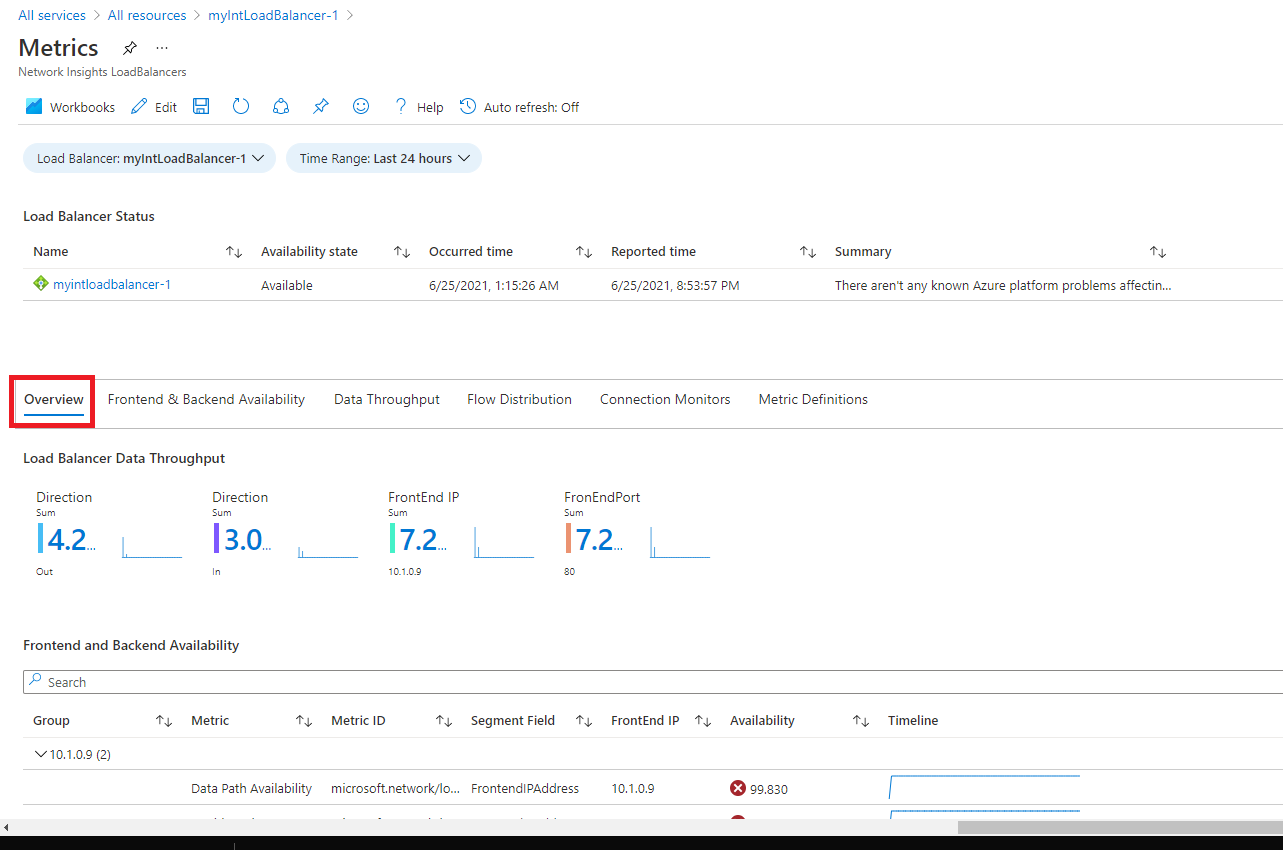
This opens a large full Metrics page in the Azure Network Insights platform. The first tab you land on is the Overview tab, which shows the availability status of the load balancer and overall Data Throughput and Frontend and Backend Availability for each of the Frontend IPs attached to your Load Balancer. These metrics indicate whether the Frontend IP is responsive and the compute instances in your Backend Pool are individually responsive to inbound connections.
-
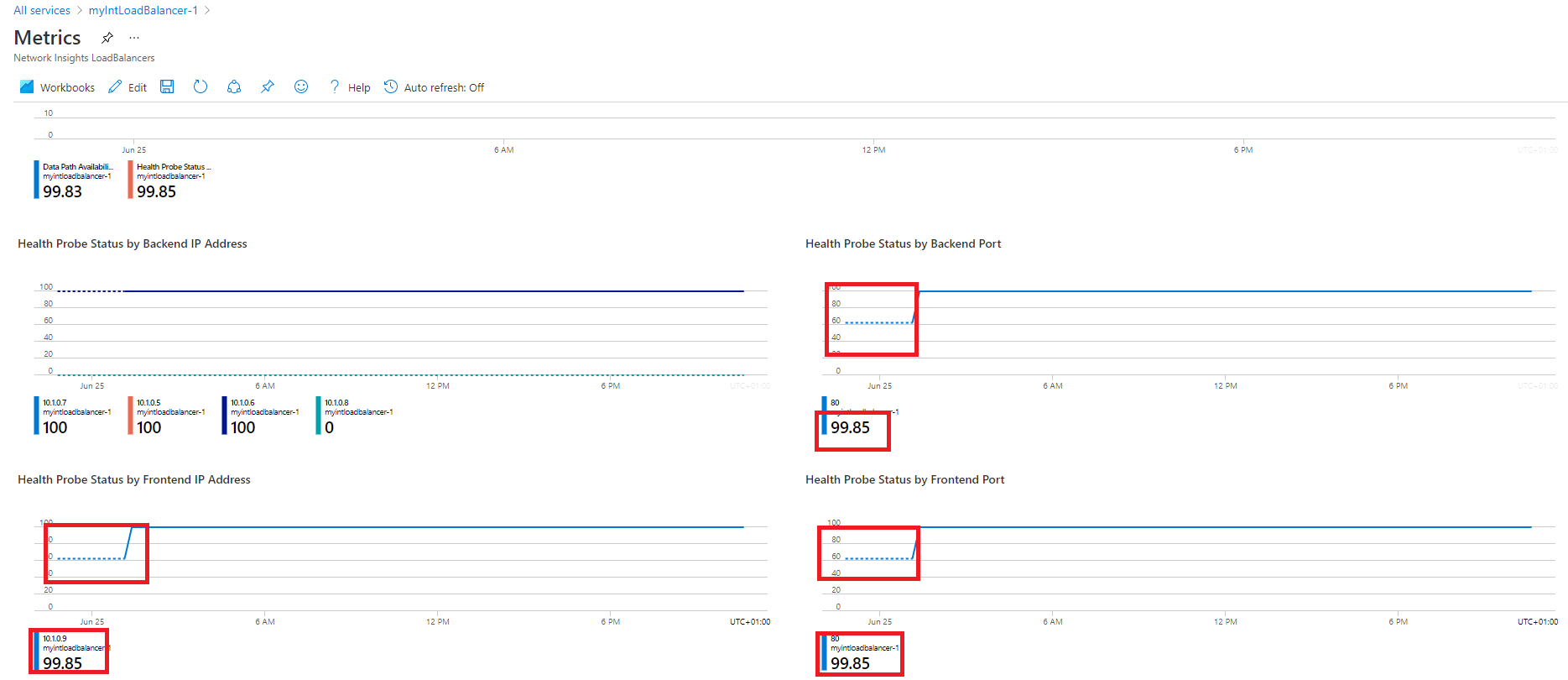
Click the Frontend & Backend Availability tab and scroll down the page to see the Health Probe Status charts. If you see values that are lower than 100 for these items, it indicates an outage of some kind on those resources.
-
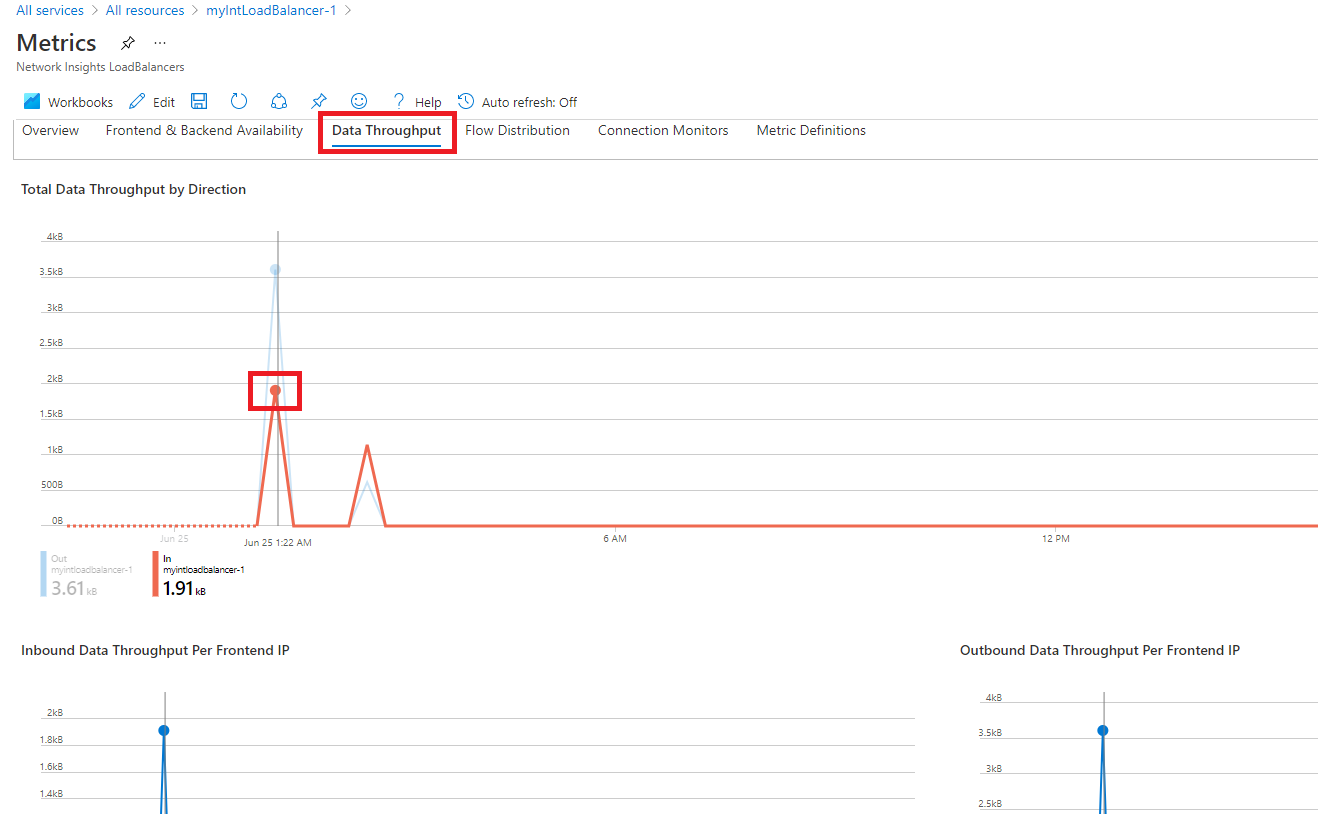
Click the Data Throughput tab and scroll down the page to see the other data throughput charts.
-
Hover over some of the data points in the charts, and you will see that the values change to show the exact value at that point in time.
-
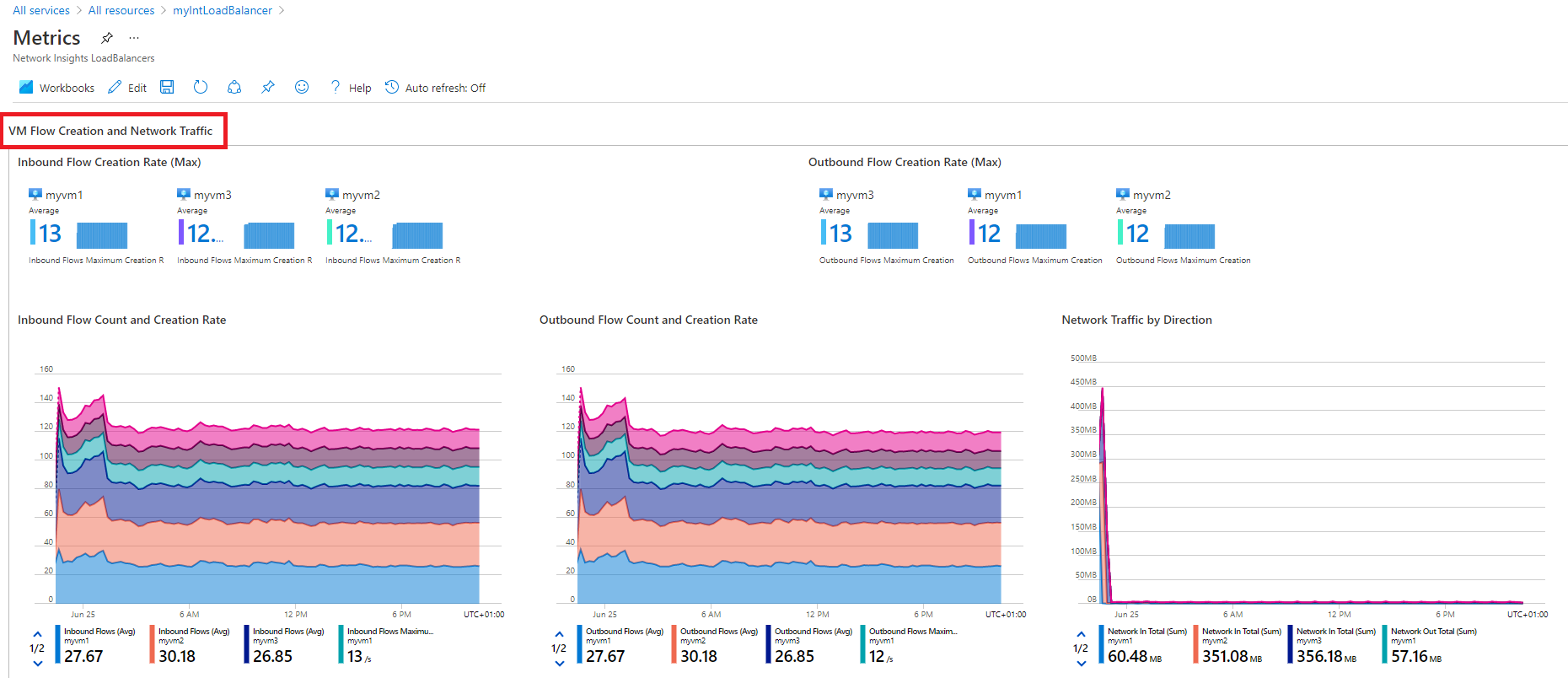
Click the Flow Distribution tab and scroll down the page to see the charts under the VM Flow Creation and Network Traffic section.
Task 13: View resource health
-
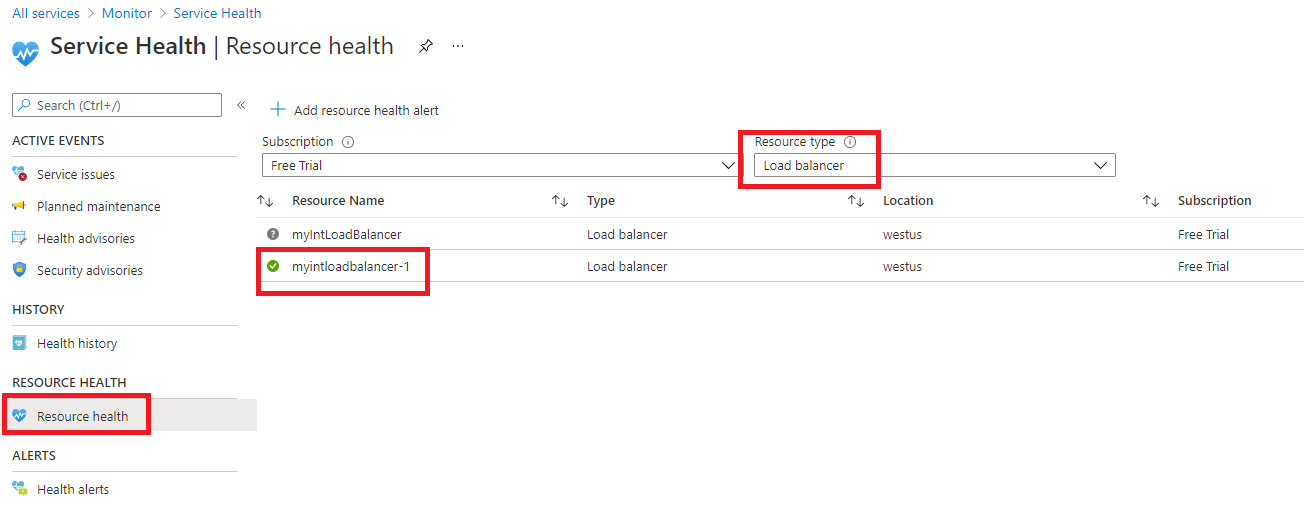
To view the health of your Load Balancer resources, on the Azure portal home page, click All services, then select Monitor.
-
On the Monitor>Overview page, in the left-hand menu click Service Health.
-
On the Service Health>Service issues page, in the left-hand menu click Resource Health.
-
On the Service Health>Resource health page, in the Resource type drop-down list, scroll down the list and select Load balancer.
-
Then select the name of your load balancer from the list.
-
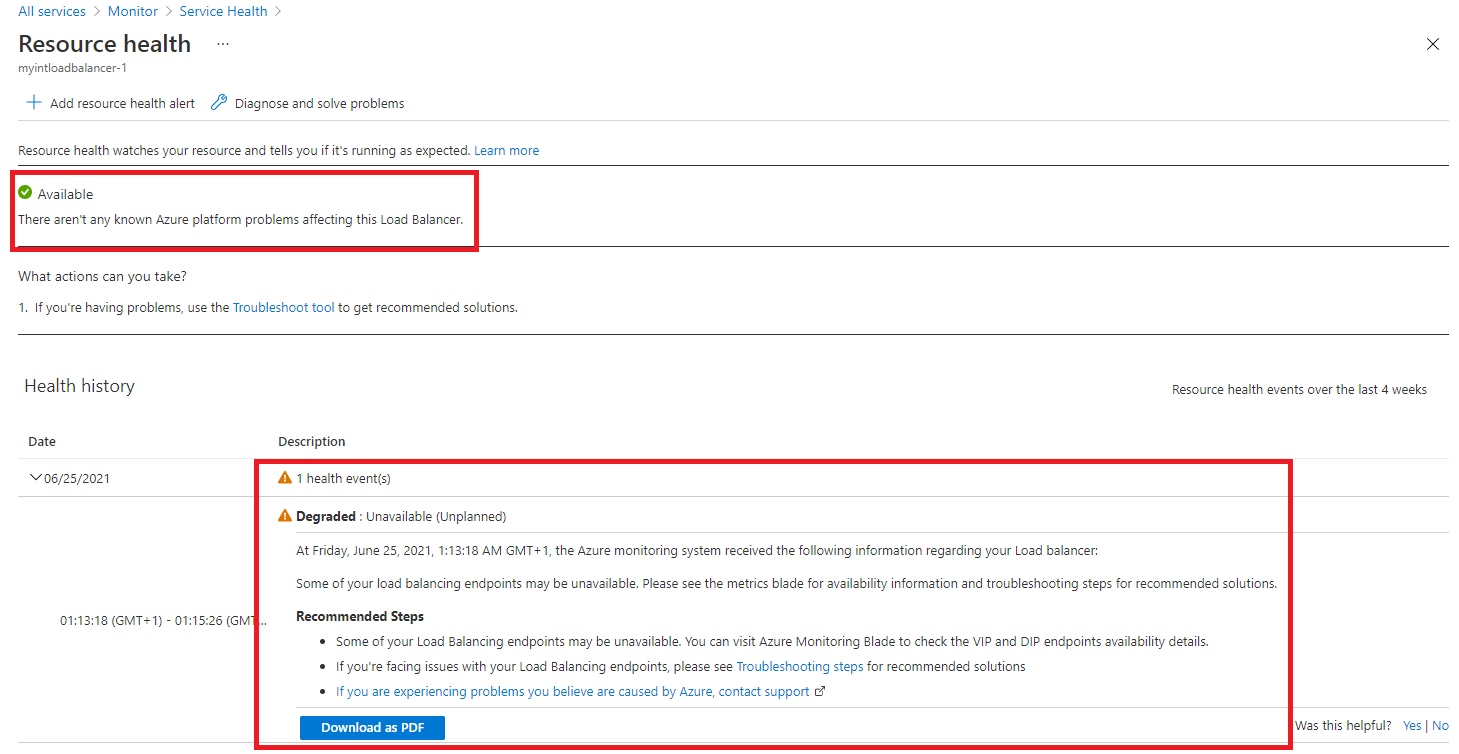
The Resource health page will identify any major availability issues with your load balancer resource. If there are any events under the Health History section, you can expand the health event to see more detail about the event. You can even save the detail about the event as a PDF file for later review and for reporting.
Task 14: Configure diagnostic settings
-
On the Azure portal home page, click Resource groups, then select the IntLB-RG resource group from the list.
-
On the IntLB-RG page, click the name of the myIntLoadBalancer load balancer resource in the list of resources.
-
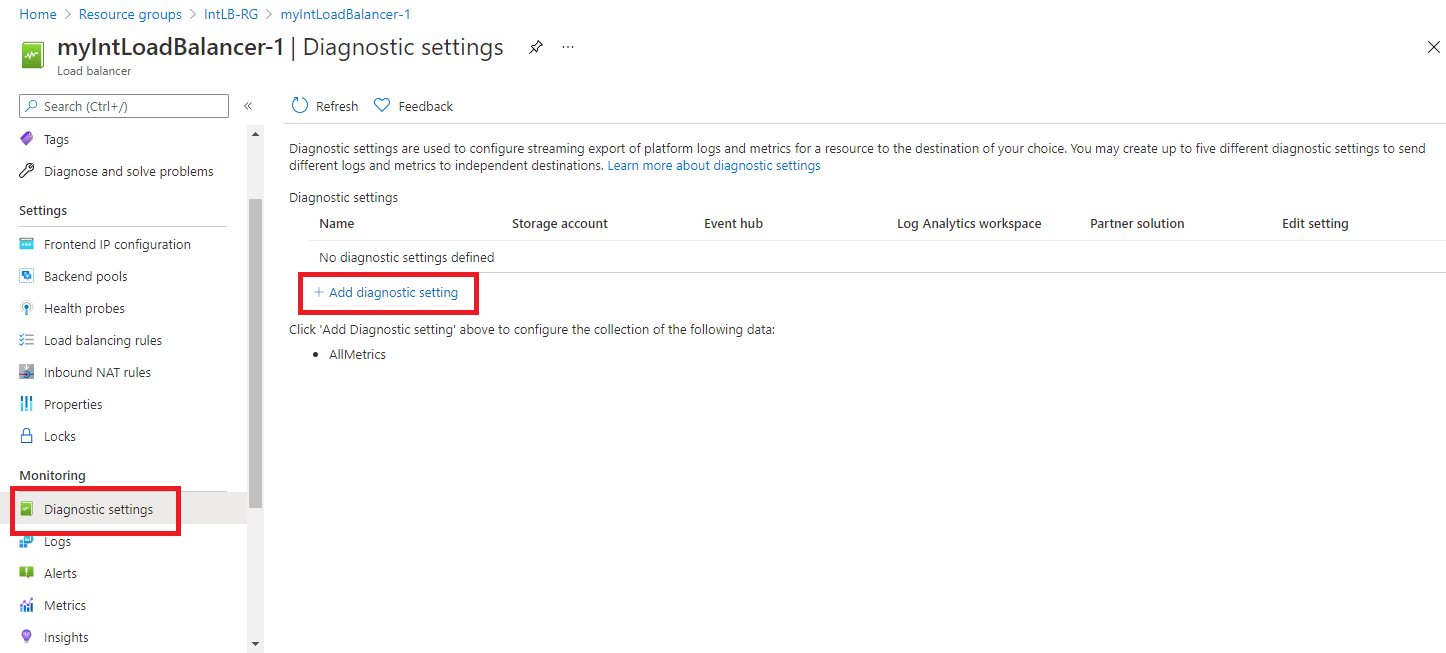
Under Monitoring, select Diagnostic settings, then click Add diagnostic setting.
-
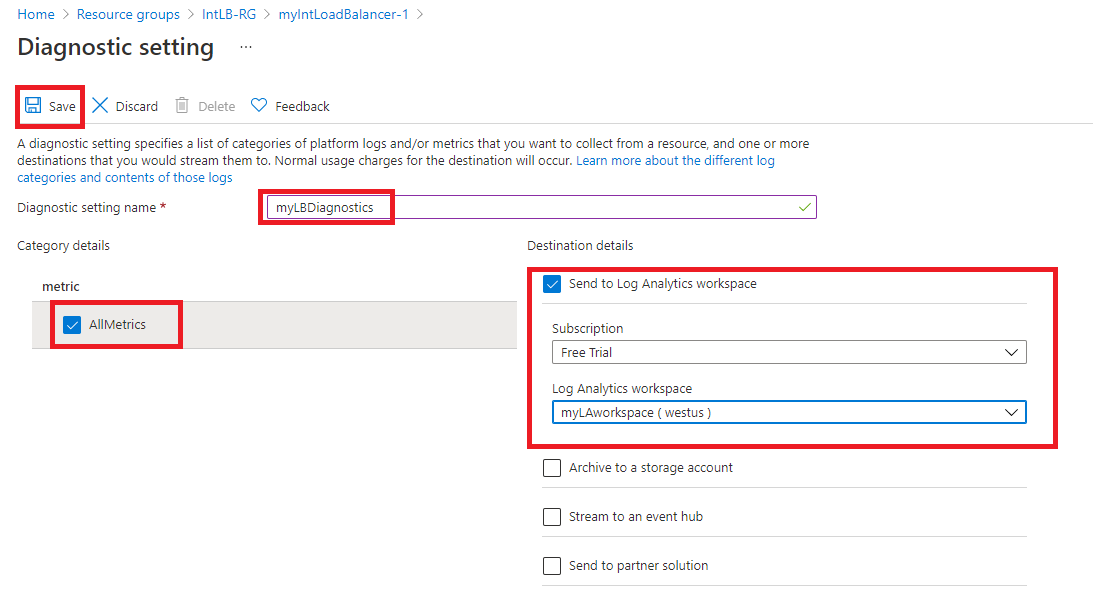
On the Diagnostic setting page, in the name box, type myLBDiagnostics.
-
Select the AllMetrics checkbox, then select the Send to Log Analytics workspace checkbox.
-
Select your subscription from the list, then select myLAworkspace (westus) from the workspace drop-down list.
-
Click Save.
Task 15: Clean up resources
Note: Remember to remove any newly created Azure resources that you no longer use. Removing unused resources ensures you will not see unexpected charges.
-
In the Azure portal, open the PowerShell session within the Cloud Shell pane.
-
Delete all resource groups you created throughout the labs of this module by running the following command:
Remove-AzResourceGroup -Name 'IntLB-RG' -Force -AsJobNote: The command executes asynchronously (as determined by the -AsJob parameter), so while you will be able to run another PowerShell command immediately afterwards within the same PowerShell session, it will take a few minutes before the resource groups are actually removed.